Intro »
ChromaChecker Starting Guide »
How to start? »
How to start? (Print Industry) »
CC Capture Instruments »
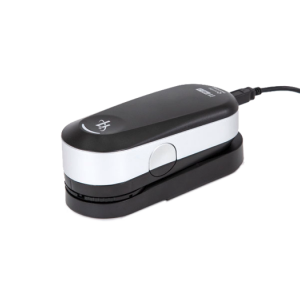
X-Rite i1 Pro
July 6, 2022
X-Rite i1 Pro
 |
 |
 |
 |
 |
 |
| Step 1 | Step 2 | Step 3 | Step 4 | Step 5 | |
| Download CC Capture and install it |
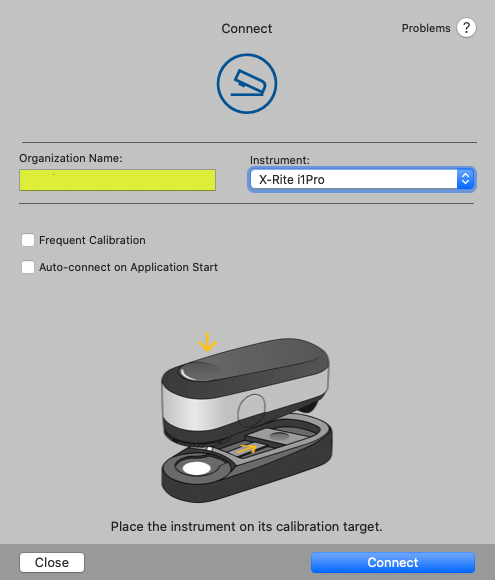
Connect Instrument |
Launch the Application |
Enter Organization Name, |
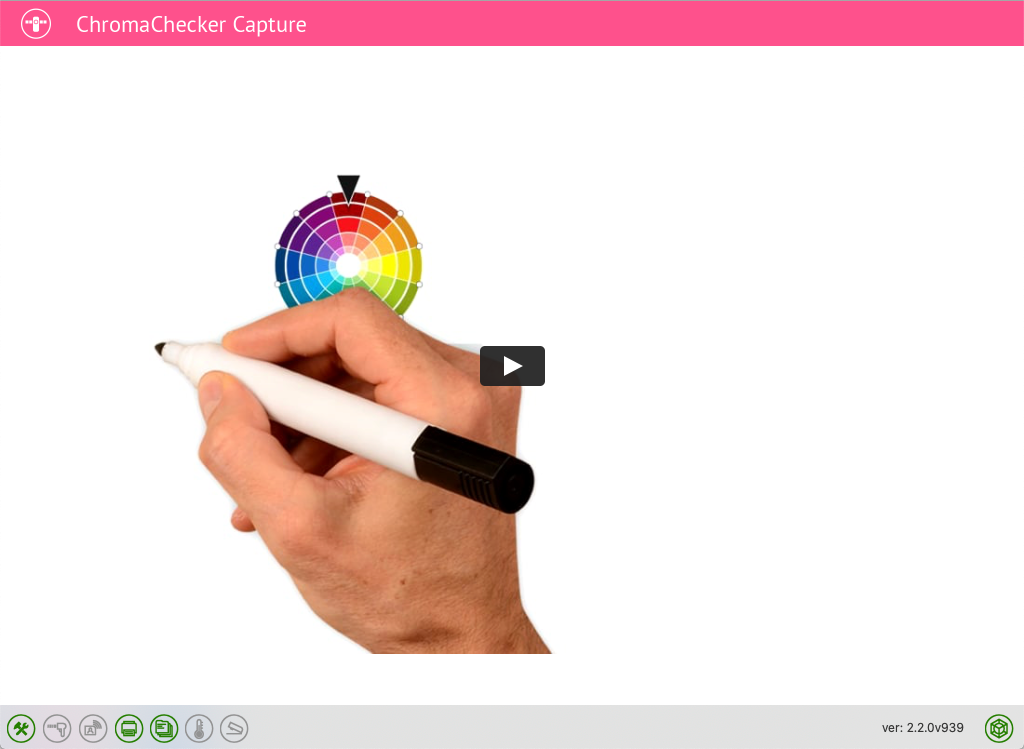
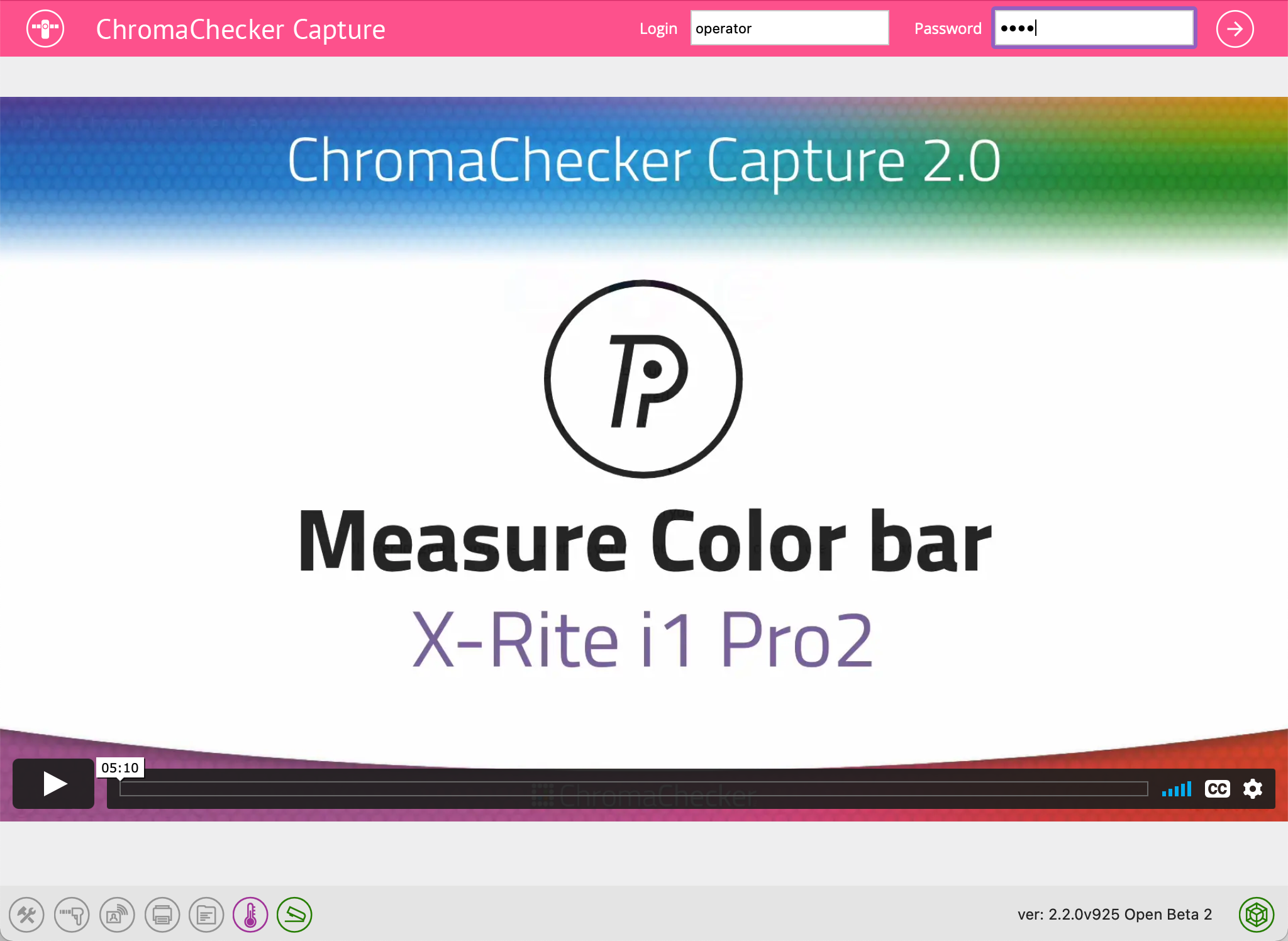
Watch the video, |
|
Learn more here:
 |
QuickStart CC Capture |
Accessories:
T-42 Target, CC Measurement Backer, CC Substrate Backer, CC-2D Barcode Reader, CC RHT-USB Sensor, Label Printer
Technical information related to X-Rite i1 Pro driven by CC Capture:
- Inspectors:
 Print,
  Instrument,
  Color,
  Substrate, Lighting
- Supported instruments: i1Pro, i1Pro UV, i1Pro 2, i1Pro 3, i1Pro3 Plus, ES-1000, ES-2000
- Modes: Spot, Scan (w. ruler)
- M-Condition supported: M0, M1, M2, M3 (depending on the instrument)
Any Problem?
- Check the Troubleshooting guidelines first.
- Use the "Send Feedback" feature (top menu of CC Capture) to report your issue.
- Contact technical support via e-mail
Contact ChromaChecker Support
Additional information and Support Form is available for logged users.