Snowflake Tolerancing
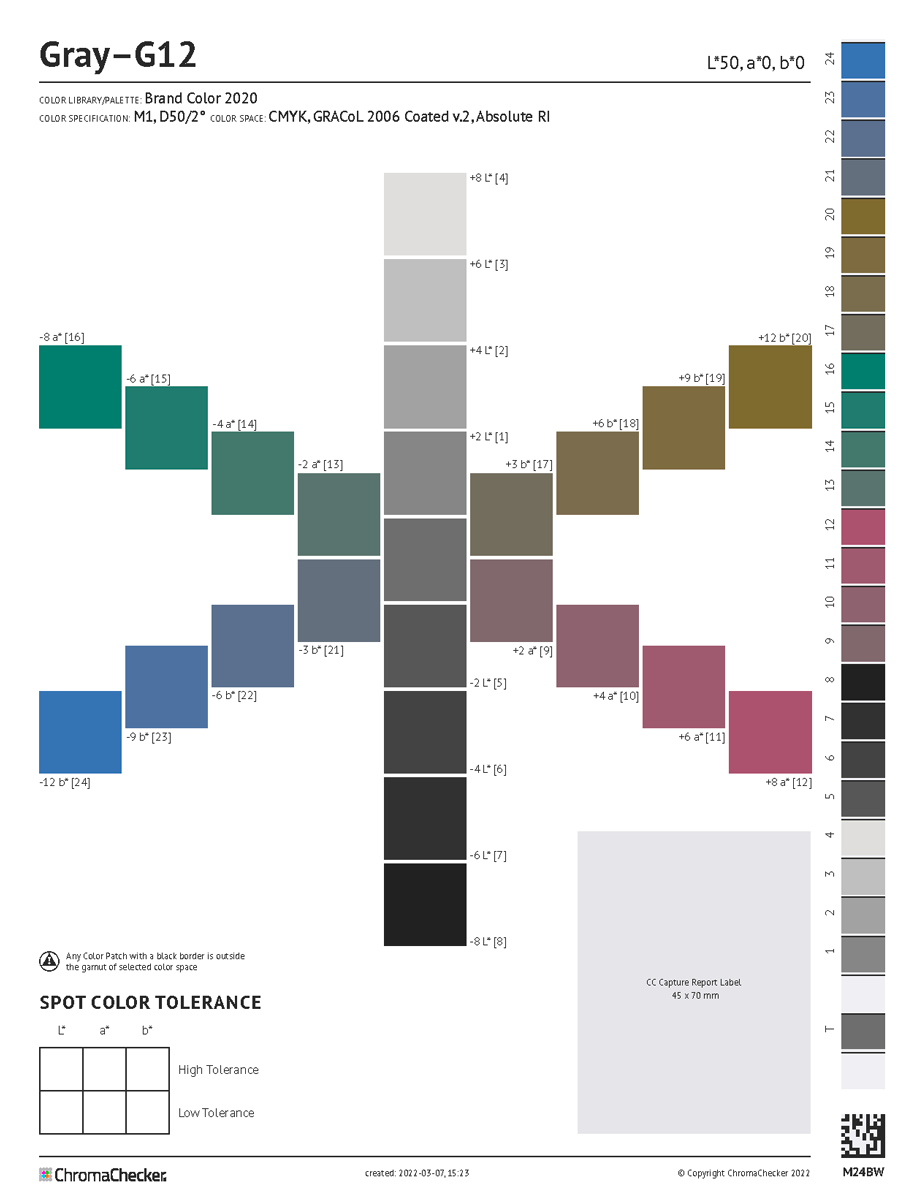
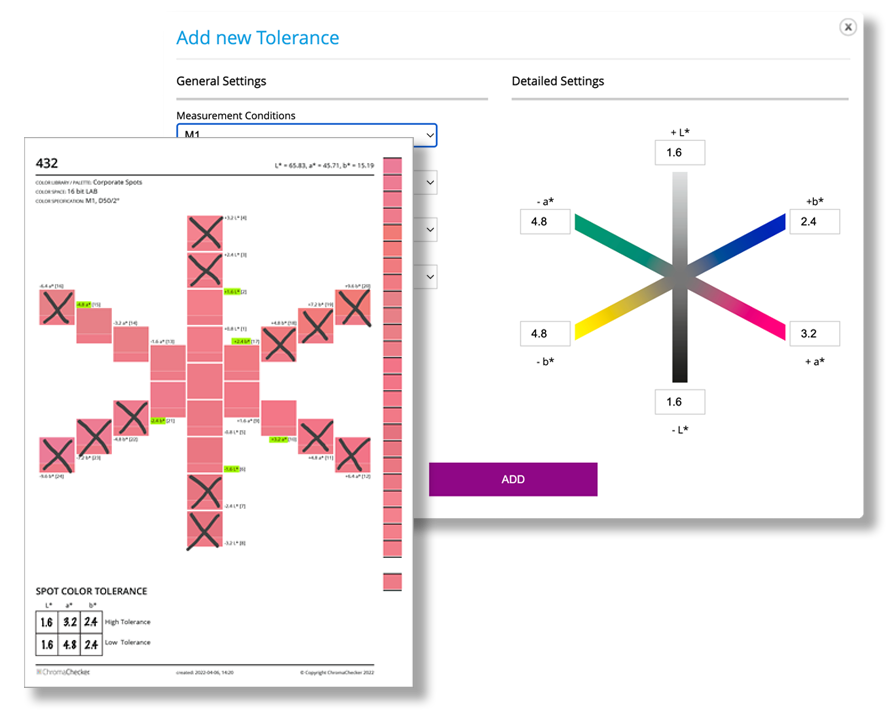
The Snowflake tool defines acceptable color tolerance independently along each color axis — reflecting how human vision actually perceives color differences, rather than treating all directions equally.
Why ΔE Alone Is Not Enough
A single ΔE value defines a sphere of acceptable color variation — equal tolerance in every direction. But human color perception is not uniform across all color axes. The brain responds very differently to shifts in certain directions (for example, green–magenta is far more noticeable than blue–yellow for many colors).
The Snowflake solves this by allowing you to set a separate tolerance value for each color axis independently, creating an asymmetric tolerance “shape” that matches real perceptual expectations for the specific color being evaluated.
Color Space Options
When generating a Snowflake, select the color space that matches your press workflow:
Workflow: From Screen to Print
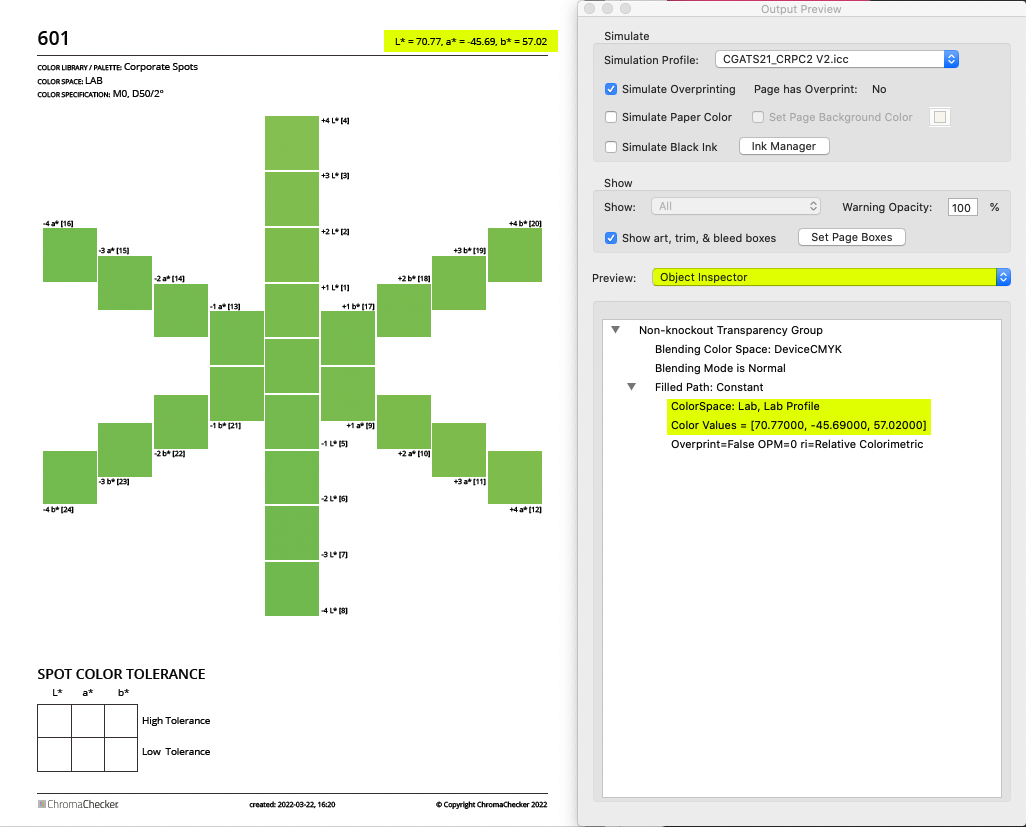
For best results, follow this sequence when setting up a Snowflake tolerance:
- Display first — preview the Snowflake on a calibrated, profiled display before printing. This saves consumables and identifies obvious issues early.
- Verify ICC profile quality — the accuracy of the Snowflake on press depends directly on how well the ICC profile represents the actual print condition. A good device profile is essential.
- Print and measure — the Snowflake generates a PDF for Letter/A4 paper, including an optional integrated control strip. Print and measure to verify the actual printed tolerance against the intended values.
- Iterate if needed — if measured values differ from expected, check ICC profile alignment with the control strip and consider iterating Spot Color LUTs in the RIP workflow.
Libraries and Palettes — Multiple Tolerance Sets
Different substrates, customers, and production conditions may require different tolerance levels for the same color. ChromaChecker supports this through Libraries and Palettes:
- Libraries — contain the master color reference values
- Palettes — subsets of a library with tolerance overrides for specific applications (e.g. uncoated stock, flexible packaging, or a specific customer’s requirements)
This means one brand color can have different Snowflake tolerances for offset on coated, offset on uncoated, and flexographic printing — all managed in a single system.