Snowflake
Divide tolerance into six Lab axes for nuanced color acceptance.
Overview
It often turns out that the commonly used ΔE formula doesn’t perform as expected. Brand owners usually strive for tighter tolerances and, when choosing ΔE, expect low values, often pushing us to the technological limits. Working with a small safety margin frequently results from exceptional cases that, for the client, constitute a critical deviation from what is acceptable. The lack of strong correlation between perceived color differences and formulas such as ΔE 2000 can be addressed by specifying slightly more lenient permissible deviations. One such solution is the snowflake (named after a simplified way of representing the Lab space). If we divide the tolerance into three axes: L*, a*, and b*, and specify upper and lower limits for each, the tolerance thus constructed will effectively protect the client’s expectations while providing slightly more leeway for less critical errors.
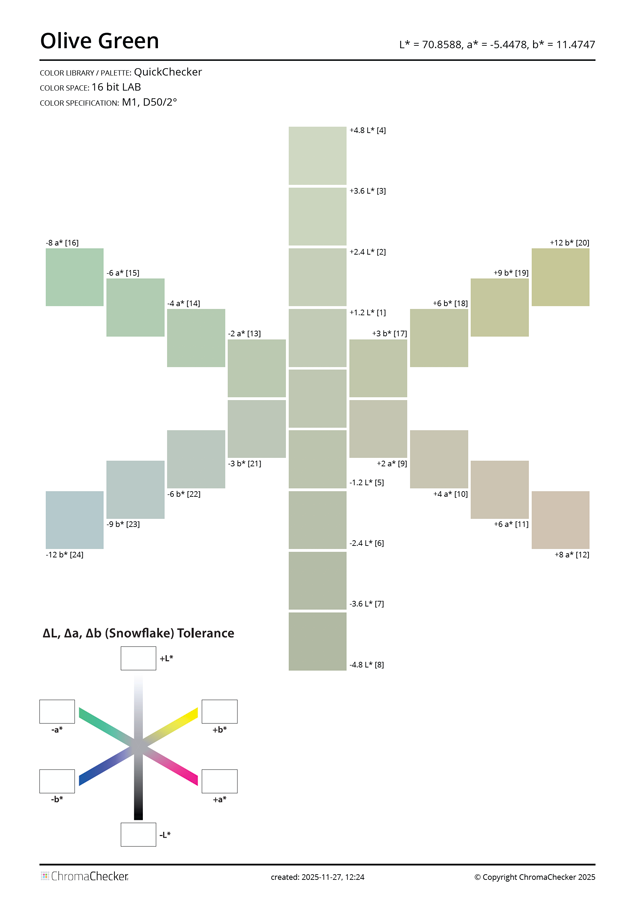
The snowflake tool generates deviations from the color standard (central point), showing how a sample appears when it moves in the six directions defined by the Lab system axes.
To understand the concept, it’s best to start with experimentation. Selecting the parameters for generating the difference values usually quickly reveals that the step on the L axis must be smaller than those on the other axes, a* and b*. These two axes are strongly dependent on the color of the standard and will be slightly different for different colors. Experimentation teaches us to perceive color differences better and is an exercise in developing observation skills and teaching us how to describe such differences. ChromaChecker places great emphasis on better linking the perception of color deviations with the measurement system.
Understand Snowflake Parameters
PDF Color Space
The created file may address graphic objects using various color spaces, such as Lab, CMYK, or RGB. This requires understanding the details of your production workflow. If you are using an inexpensive SOHO printer, it is probably using a generic system driver that uses the RGB color space. If you have a printer with a RIP (for example, an Xerox MFP with EFI Fiery, an Epson proofer controlled by the RIP, or a Konica Minolta KM-1e Press), it is mostly CMYK.
Device ICC Profile (CMYK and RGB spaces only)
Please select the ICC profile for your printing device.
LUT (for selected ICC Profile)
Select the LUT that is already created. There are two options the user can create a custom LUT — one designed for single samples, when iteration in a single step is focused on one selected sample, available as an option in QuickChecker; or for more samples (whole library or palette), iterated using the dedicated Scan Color Match tool (designed for use with XY scanning instruments). LUT must be correlated with the ICC Profile and cannot be transferred to another one.
Color Depth
If your system can handle 16-bit — use it for more accurate addressing. Inexpensive solutions are often 8-bit only, while more advanced ones can use deeper color definition.
Snowflake Distribution
Several ready-made presets, plus the ability to enter custom values and adjust the step size for each Lab axis.
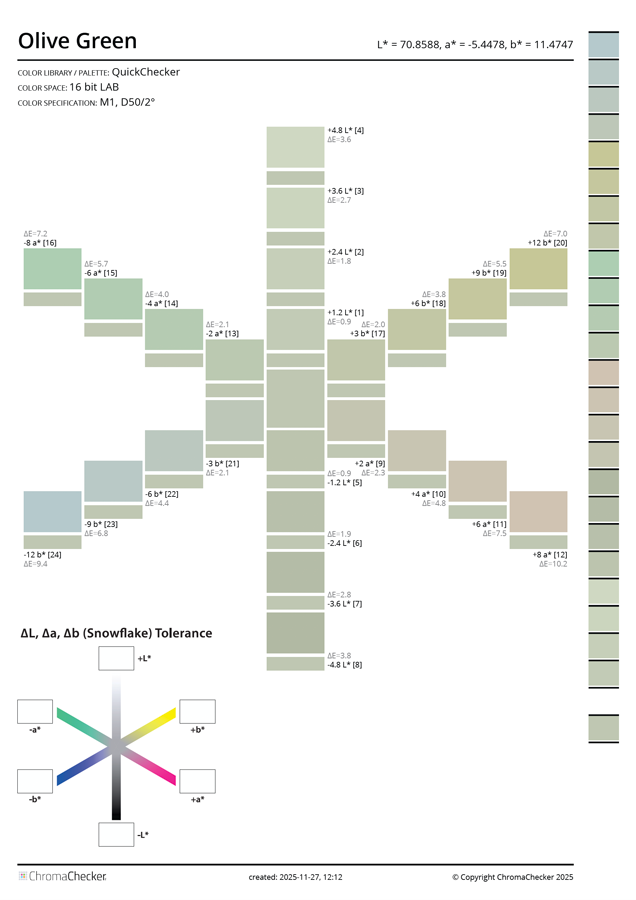
Show ΔE00
This function displays the calculated ΔE 2000 values for comparison with the traditional delta.
Target Comparison
This option displays a small reference value field for direct comparison.
Add Separator
The perception of difference can be different when an additional dividing line separates objects. It’s worth comparing how this affects our judgment. Any exercises help us improve our ability to assess color differences and have a very beneficial effect on creating experience.
Include Control Strip
This option allows experts to measure all samples. A print is never free of deviations — this can be achieved quickly with a spectrophotometer. This option requires experience and a good understanding of the tools — the measurement strip is measured using a repeated placeholder and substrate.
Example
Settings: Snowflake distribution Coarse — steps: L* ± 1.2, a* ± 2, b* ± 3 (very different!)
Depending on the options you choose, the PDF may look slightly different. Below are the basic and full versions.
Practical Implementation
What’s essential is that ChromaChecker supports this tolerance type. They can exist independently or in combination with classic formulas. It’s worth noting that some instruments (eXact X-Rite) partially support this tolerance system. Still, the values on a given axis must be symmetrical — three values are provided instead of six.
It’s worth evaluating Snowflake on screen and in print — the perceived differences may be slight. Of course, it’s worth calibrating your monitor, and for an exact printout, use the Start Color Match or Scan Color Match iteration tools.
Usage
Draw a boundary line to enclose acceptable variations, and then enter the corresponding numbers in the diagram’s cells. In this example, significant differences are used for demonstration purposes.
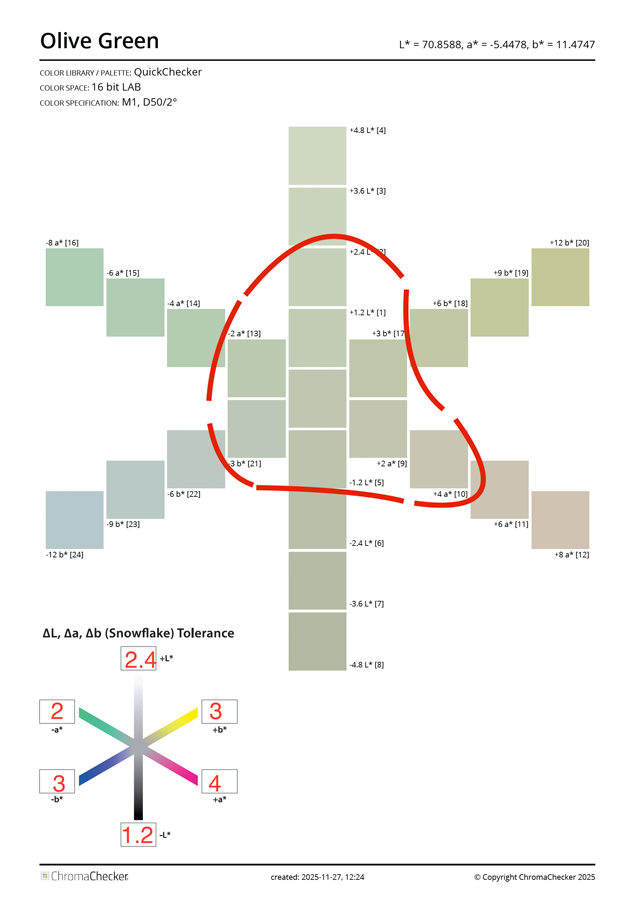
Later, when creating a project, copy the settings to the tolerance diagram.
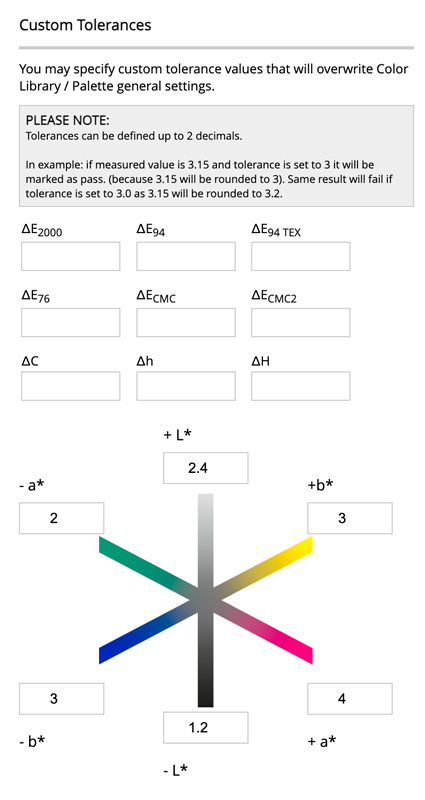
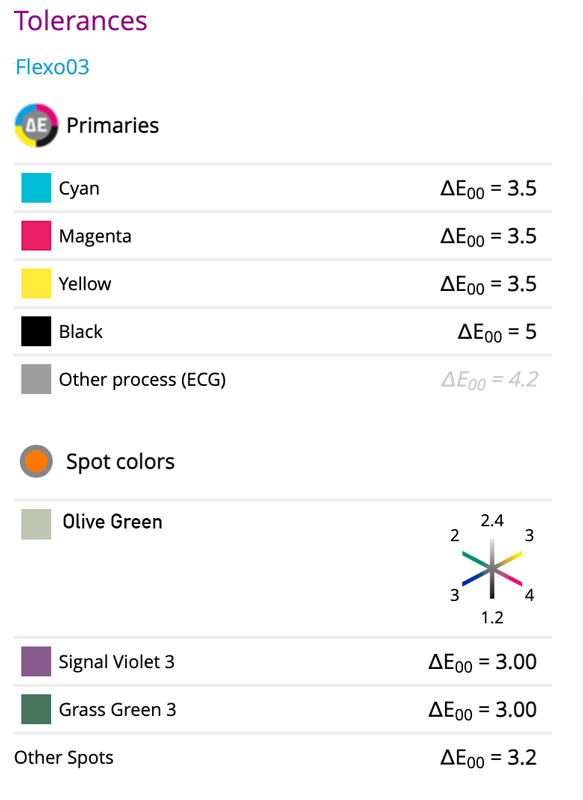
When saved, the Olive Green spot has Snowflake tolerance, and now we can see it on the list.
Defining the Tolerance in the Library or Palette
In the Assets (Color Inspector), you can extend the color definition to include snowflake tolerances.
Quick Verification
The easiest way to check Snowflake values is using QuickChecker. The dedicated tab uses a familiar diagram.
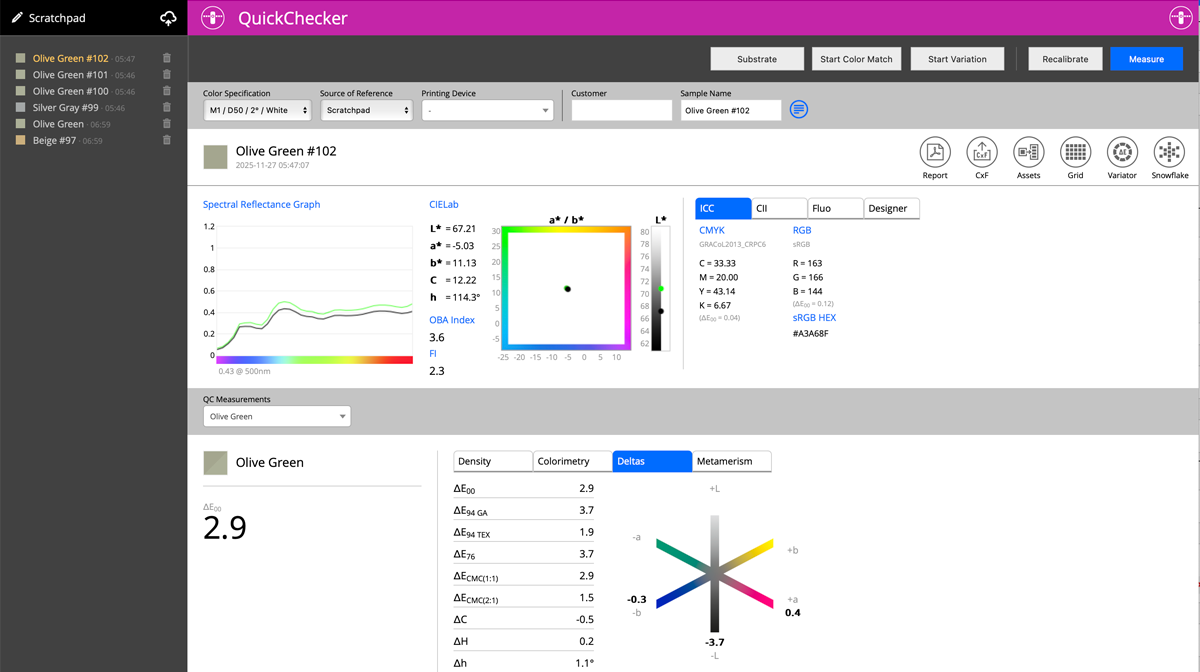
In this example, Olive Green is visible in the scratchpad and can be selected as the reference source. In the Deltas Tab, we can see a Snowflake diagram for instant checks.