Fanbooks
Create PDF color sample books from your Color Library.
Overview
To print a Fanbook, you need a Color Library with the associated ICC Profile and LUT. If necessary, check the measured deltas for each sample. Your Substrate/Printer/Finishing gamut might not cover all the samples, especially if they are highly saturated.
The principle is simple: Create a PDF file, preferably in CMYK color space. The named color should use CMYK values from the LUT. The process is automatic.
You may select different media sizes and activate some options when creating PDFs. Cut lines and actual deltas displayed next to the sample are such options.
Creating a Fanbook
- Go to the ChromaChecker website interface, Color Inspector, and Assets.
- Select the library with the checkbox and hit the “Fanbook” button at the bottom.
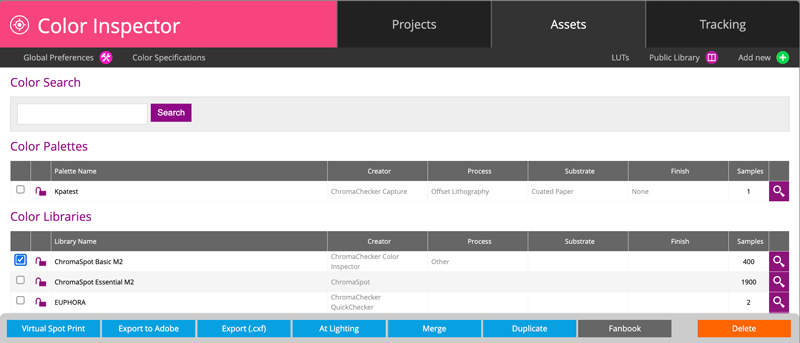
Please note that you need to have a LUT already defined for any Color Space you wish to use.
- Select all parameters, including Color Specification, Color Space, ICC Profile, and LUT.
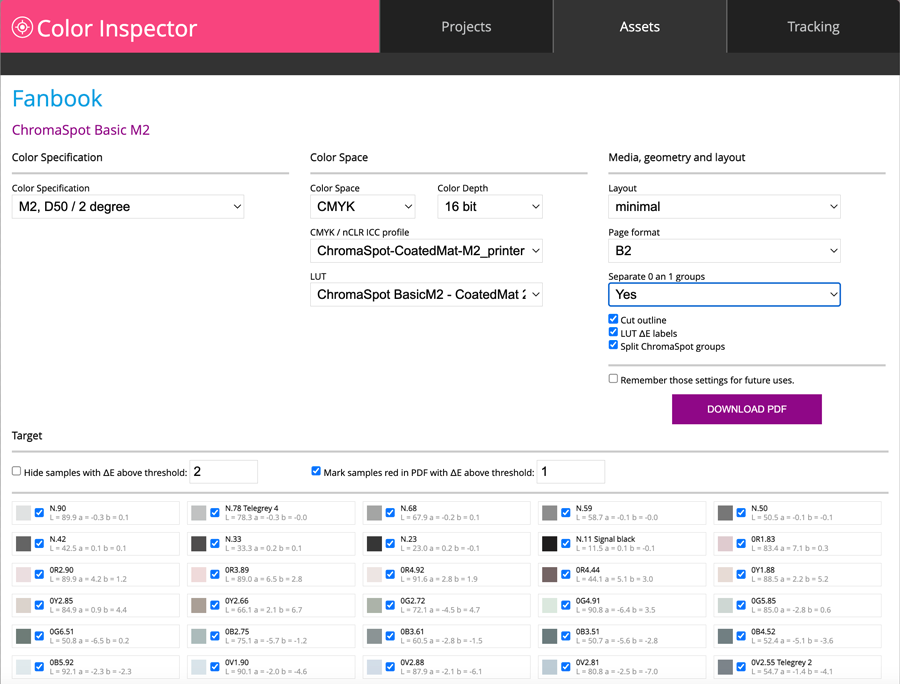
- In the next step, select the media size and layout. Download and check the PDF.
Depending on the setting and library, it may look like this:
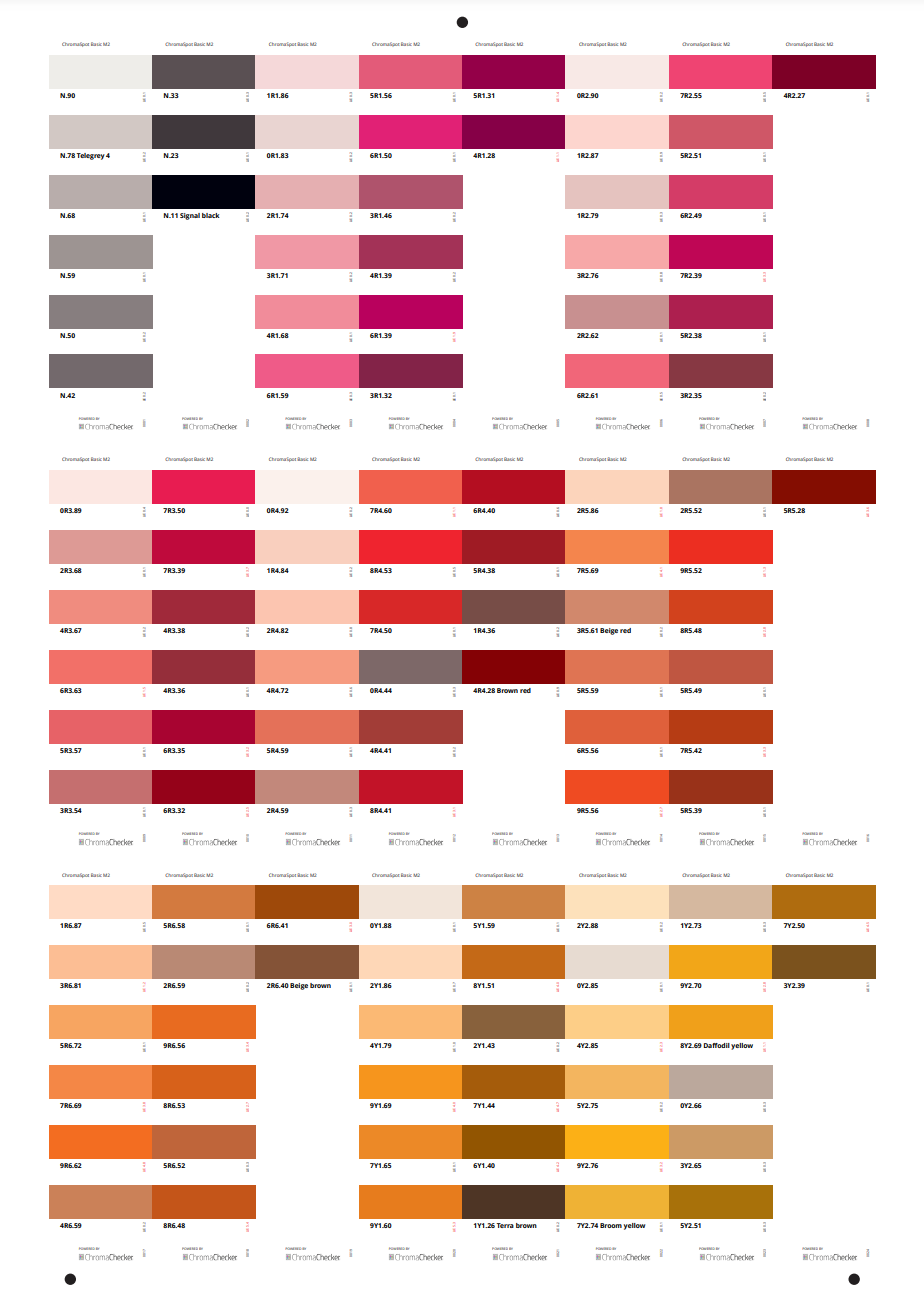
If the Library name starts with ChromaSpot, the sample order should be reordered — it is specifically designed for this library.
- In the next step, print it and optionally apply the finishing.